
 Joel Vanner

Images, charts, diagrams, and other visuals can help students understand complex concepts and engage with course materials. However, students who are blind, have low vision, or use assistive technologies may not be able to access the information these visuals convey.
Making images accessible ensures that students can understand their purpose and the information they communicate.
Alternative text, commonly called alt text, is a brief written description of an image that screen readers can read aloud to students. It also displays when an image fails to load for a student, such as if they have a poor Wi-Fi connection or cellphone signal.
- Describe the image's purpose. Focus on the information students need to understand rather than every visual detail.
- Keep descriptions concise. Aim for 140 characters or less and avoid phrases like "Image of" which are unnecessary. For complex images, provide a longer description in the surrounding text or a separate document.
- Consider the context. The same image may need different descriptions depending on how and where it is used in your course.
- Identify decorative images. If an image is purely decorative and adds no meaningful information, mark it as decorative so screen readers can skip it.
ChatGPT can also be used to generate alt text, but always verify that it is accurate and concise. Consider including the surrounding context of the image in your prompt to get more accurate outputs.
Example
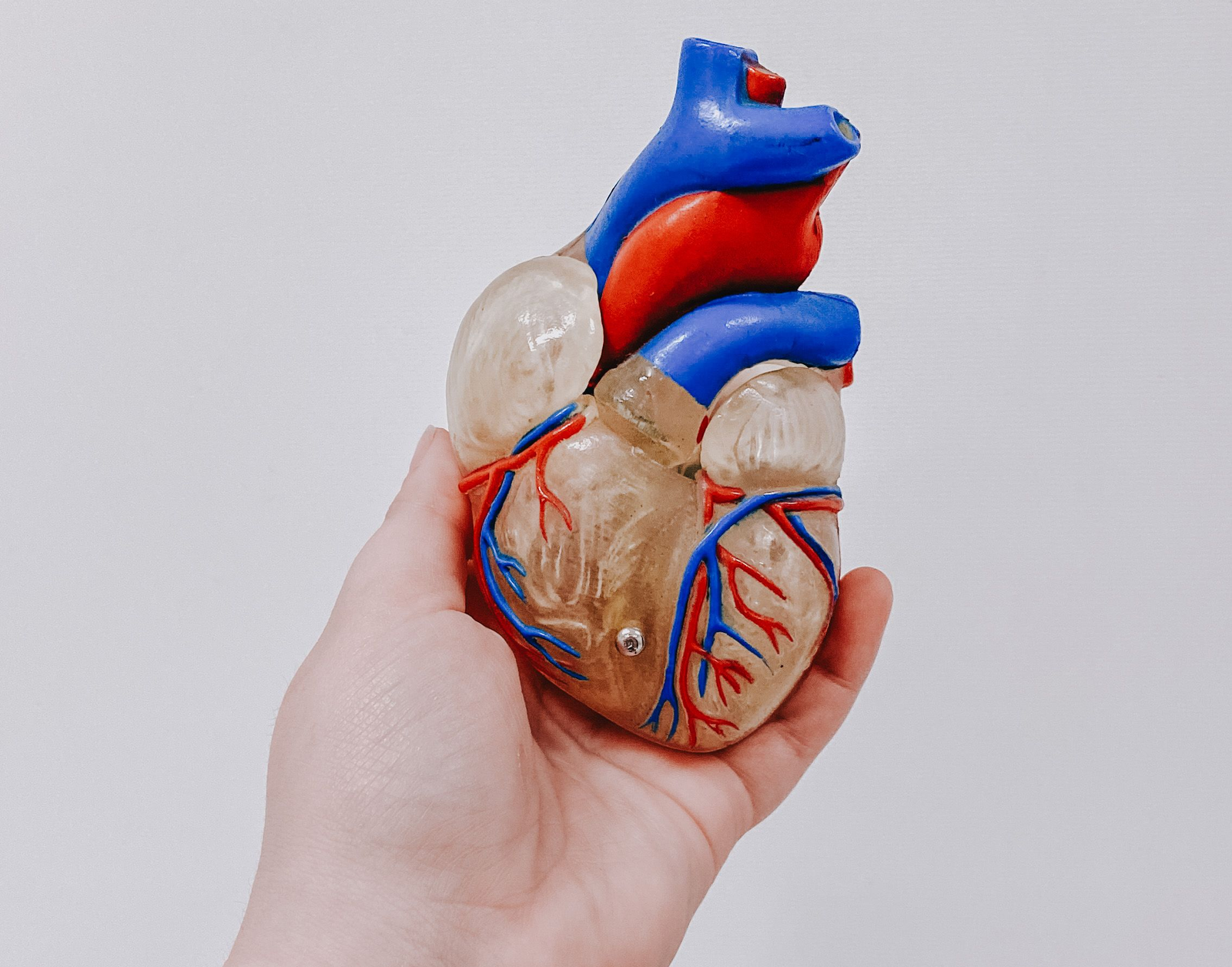
- Avoid: "Picture of a heart.”
- Instead: "A hand holds a colored anatomical model of the human heart, showing the major blood vessels.”
If the image is simply decoration and doesn't contribute to the content, it may not need a description.
- In Canvas: Select an image in the Rich Content Editor, then select Image Options to add alt text or mark it as decorative.
- In Microsoft Word: Right-click an image and select View Alt Text to add a description or mark the image as decorative.
Charts, graphs, and diagrams often communicate more information than a short alt text description can capture.
- Summarize the main takeaway. Use alt text to describe what the visual represents and its most important finding.
- Provide additional details in text. Explain important trends, relationships, or data in the surrounding content or a longer description.
- Don't rely on color alone. Use labels, patterns, or other visual indicators to distinguish information.
- Provide the underlying data when appropriate. For data-heavy charts, consider including an accessible table with the values.
Example
Rather than describing every bar in a chart, the alt text might read: "Bar chart showing enrollment increasing each year from 2020 through 2025." Additional details can be provided in the surrounding text.
Text embedded in an image can be difficult to read when enlarged and cannot be interpreted or adjusted by many assistive technologies.
- Use actual text whenever possible. Instead of uploading an image of instructions, type the instructions directly into Canvas.
- Avoid screenshots of text. If you need to share a passage, use selectable text rather than an image. ChatGPT can extract the text from an image so you can paste it into Canvas.
- Maintain readability. If text must appear in an image, ensure it is large enough to read and has sufficient contrast with the background.
- Provide a text alternative. Include the essential wording in the alt text or surrounding page content when an image contains meaningful text.
 YuJa Panorama
 can identify accessibility issues with images in Canvas content and uploaded documents.
- When editing content in Canvas (pages, discussions, assignments, etc.), click the speedometer icon in the bottom right.
- Review identified issues related to images and alternative text.
- Follow the recommendations to add or improve descriptions.
Panorama also allows you to generate AI alternative descriptions to images in Canvas. Remember that automated tools cannot determine whether alt text accurately conveys your instructional intent. Always review descriptions yourself.
- Guidance on writing alt text for informative, decorative, and complex images.
- Check whether text and background colors meet accessibility contrast requirements.
- Instructions for adding descriptions or marking images as decorative.
- How to add alternative descriptions to images in Canvas.


